«Add to Home Screen» on iPhone: the right steps for every version
On iPhone, your venue's app does not come from the App Store: guests add it to their Home Screen from Safari, in a few taps. With Safari 26 Apple moved the Share button, and the steps changed. The app now recognises the guest's version of Safari and shows the steps that work on their phone.
What the guest sees
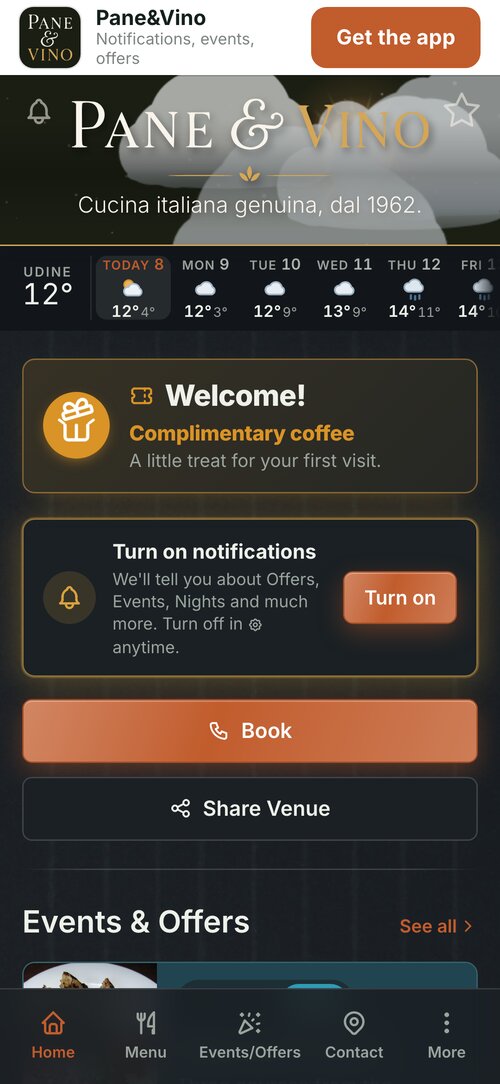
When a guest opens your app's link in Safari, a bar at the top shows the venue's name and a «Get the app» button. One tap opens the instructions.
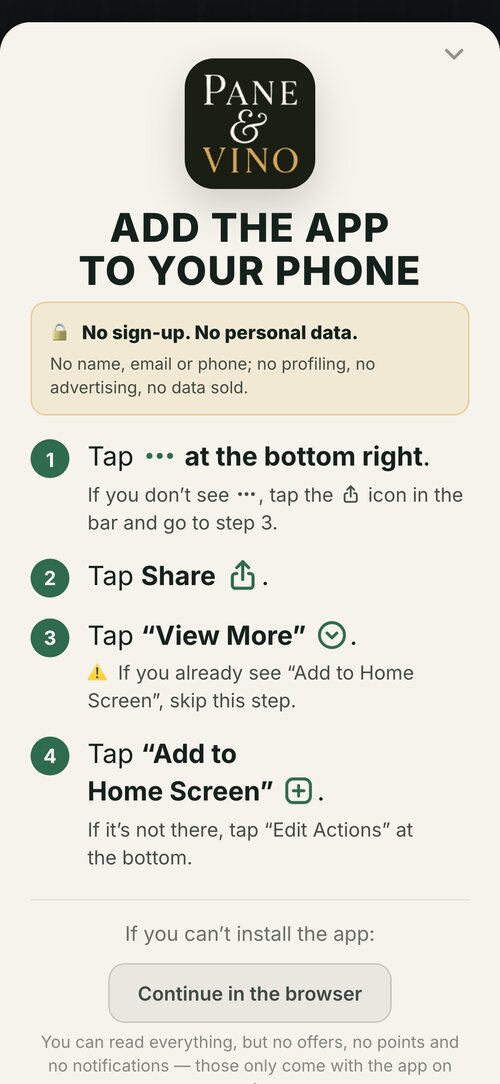
Safari 26: four steps
In Safari 26 the Share button is no longer in the bar: it sits in the ••• menu, at the bottom right. So Safari 26 users see four steps: tap •••, then Share, then «View More», and finally «Add to Home Screen».
The words are the ones Apple shows on the phone, in the guest's language. If «Add to Home Screen» is already there, the third step is skipped.
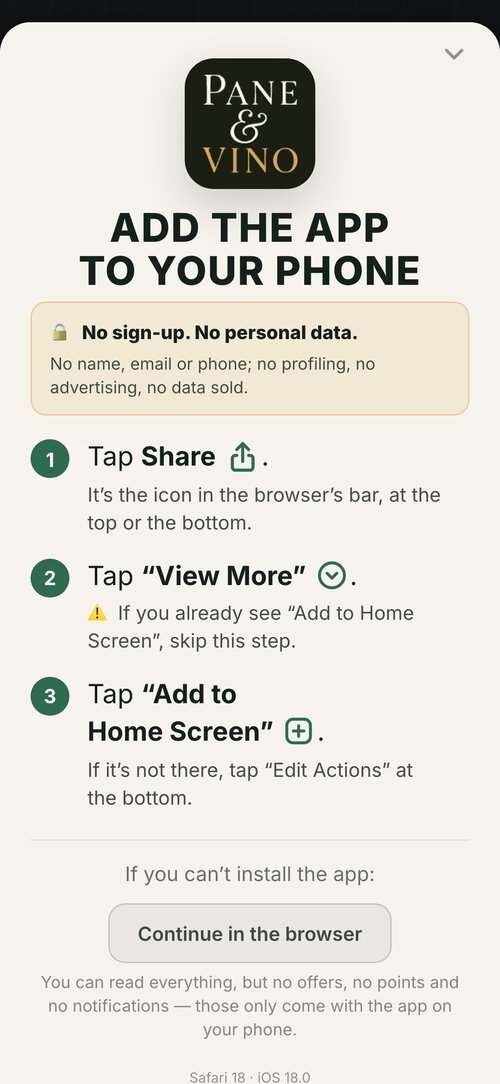
Earlier versions, Chrome and Firefox: three steps
Guests with an older Safari, or using Chrome or Firefox on their iPhone, still have the Share icon in the browser's bar. The app shows them three steps that start from there.
After the last tap
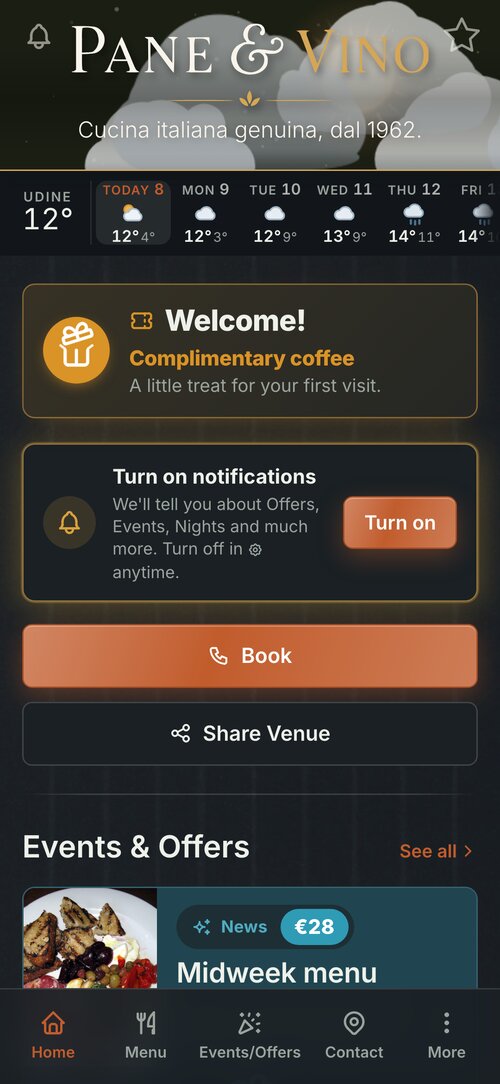
The venue's icon appears on the Home Screen, next to the other apps. It opens full screen, without the browser's bar, and that is where the offers, the points and the notifications arrive.
If the link opens inside Instagram or WhatsApp
Nothing can be installed from there: it is a window inside another app, without the iPhone's Share. The app notices and asks the guest to open the link in Safari, Chrome, Firefox or Opera.
What you need to do
Nothing. The new instructions are already in every venue's app, in all eight of the app's languages.